Setup
Pre-requisites
- Basic knowledge of Linux command line and text editors (e.g., udev rules, vim/nano).
- Ubuntu 22.04 or later installed on your machine
Installing uv
If you haven't installed uv yet, please follow the instructions below to install it.
curl -LsSf https://astral.sh/uv/install.sh | sh
See the uv installation guide for more details.
Installing the data collection software
The data collection dataflows are provided in dora-openarm-data-collection.
All OpenArm nodes are Git submodules, and uv sync --locked installs Python 3.12, the Dora CLI and all node dependencies into .venv.
openarm-can is built from source during the installation, so install a C++ compiler first.
On Ubuntu 24.04, uv uses the system Python 3.12, so also install its development headers (python3.12-dev).
sudo apt install -y build-essential
sudo apt install -y python3.12-dev  # Ubuntu 24.04 only
Then clone the repository and install the dependencies:
git clone --recurse-submodules https://github.com/enactic/dora-openarm-data-collection.git
cd dora-openarm-data-collection
uv sync --locked
source .venv/bin/activate
If you cloned the repository without --recurse-submodules, the nodes under nodes/ are empty and the dataflows fail to start.
Run the following command in the dora-openarm-data-collection directory to fetch them:
git submodule update --init --recursive
A separate dora build step is not needed.
In each new terminal, run source .venv/bin/activate in this directory before running dora so that the pinned Dora CLI is used.
To update to the latest version, run the following commands:
git pull
git submodule update --init --recursive
uv sync --locked
Running the data collection dataflow
dataflow.yaml is the only dataflow. The leader (the teleoperation device) and the robot are selected by the LEADER and ROBOT environment variables:
| Variable | Values | Default |
|---|---|---|
LEADER | ker (KER), vr (VR), webxr (WebXR), dummy (generated motion without any device) | dummy |
ROBOT | cell (OpenArm Cell), pedestal (OpenArm 2.0 without the Cell), mujoco (MuJoCo simulation), dummy (no hardware) | dummy |
Dora doesn't expand environment variables in the module paths of a dataflow, so run it through scripts/dora-envsubst.
Run the following command in the dora-openarm-data-collection directory with the virtual environment activated:
LEADER=dummy ROBOT=dummy scripts/dora-envsubst run dataflow.yaml --uv
This example doesn't need any hardware, so you can use it to check your installation. Open http://localhost:8000 in your Web browser for the data collection web UI.
The UI and the recorder use the metadata file metadata_$ROBOT.yaml (e.g. metadata_cell.yaml). Edit it before recording to set your location, operator and tasks.
The collected data is stored in data/$LEADER-$ROBOT/ (e.g. data/webxr-mujoco/) in the OpenArm Dataset format.
To change the output directory, change DIRECTORY of the recorder node in dataflow.yaml.
CAN setup
Connect right arm to can0 and left arm to can1.
If you use the OpenArm Cell, connect the lifter to can2. The lifter is required by ROBOT=cell, and it moves for calibration after the dataflow starts.
Install the CAN utilities: https://github.com/enactic/openarm_can
sudo apt install -y software-properties-common
sudo add-apt-repository -y ppa:openarm/main
sudo apt update
sudo apt install -y \
  libopenarm-can-dev \
  openarm-can-utils
Configure the CAN interfaces with the following command.
can_configure sets up can0 to can3 with a CAN FD data-phase bitrate of 5 Mbps.
openarm-can-cli can_configure
If you just buy the OpenArm 2.0 only and already zero position calibrated, you can skip the next step and move to the WebXR setup section.
Zero position setup
Set the zero position with the mechanical limits of each joint. This ensures the arm is in the correct position for data collection and evaluation.
Before setting the zero position, make sure the CAN interface is up and running:
ip link show
can0 and can1 should appear in the UP state.
If you use OpenArm Cell, can2 for the lifter should also appear in the UP state.
The arm moves automatically during the calibration. Clear the workspace and be ready to emergency stop.
Then run the following commands to set the zero position for each arm.
If you use OpenArm Cell, run openarm-can-calibration-in-cell.
It raises the lifter on can2 to the top before the calibration.
openarm-can-calibration-in-cell --arm-side right_arm
openarm-can-calibration-in-cell --arm-side left_arm
If OpenArm Cell shuts off during the calibration, see the FAQ.
If you use OpenArm 2.0 without the Cell, run openarm-can-zero-position-calibration:
openarm-can-zero-position-calibration --canport can0 --arm-side right_arm
openarm-can-zero-position-calibration --canport can1 --arm-side left_arm
See Zero Position Calibration for details.
Camera setup
Arducam's default serial number is the same for all cameras, so we need to set the serial number for each camera using arducam config tool.
1. Download ArducamUvcConfigUpdateTool
Please download the ArducamUvcConfigUpdateTool from the following link and install it on your machine: ArducamUvcConfigUpdateTool
It contains a binary file and a user manual for the tool.
2. Set the serial number for each Arducam
Open the ArducamUvcConfigUpdateTool and connect each camera one by one. Set the serial number for each camera as follows:
When you open the tool you will see the following screen:
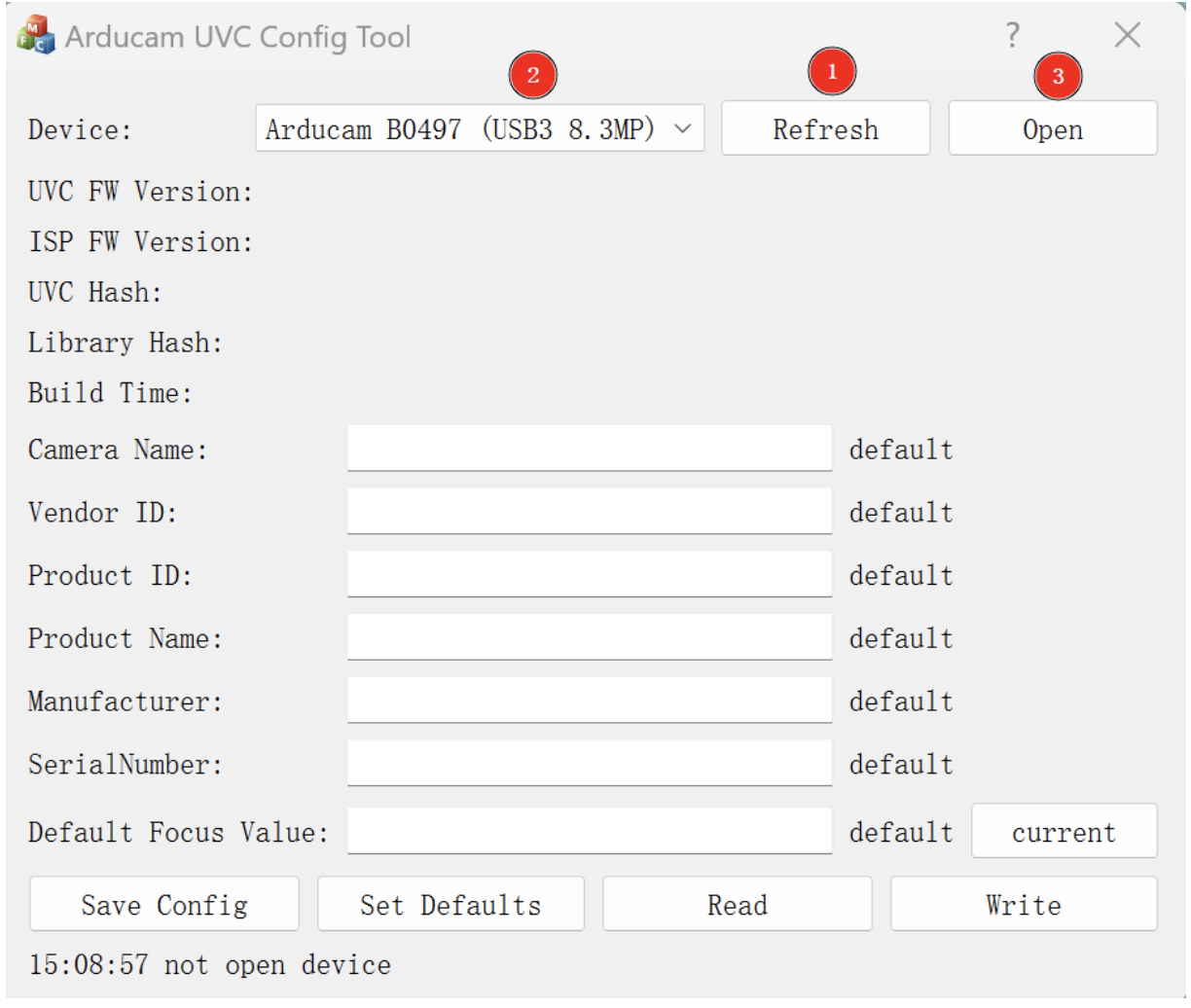
Then, set the SerialNumber for each camera as follows:
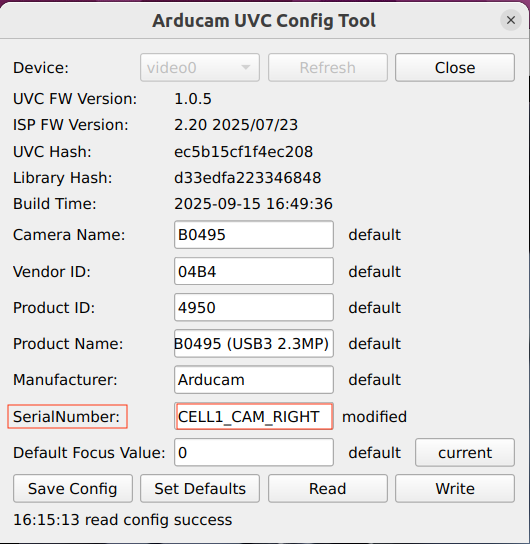
- camera_wrist_right (camera mounted on right wrist): CELL1_CAM_RIGHT
- camera_wrist_left (camera mounted on left wrist): CELL1_CAM_LEFT
- camera_ceiling (camera mounted on the ceiling): CELL1_CAM_CEILING
3. Check the vendor and product ID for the head stereo camera
The head stereo camera is a ZED camera from Stereolabs. You can check the vendor and product ID for the head stereo camera using the following command:
lsusb
If you can't see the device, try turning over the USB-C cable of the camera, as the camera has a USB-C connector that has a front and back side, and it may not be recognized if it is connected in the wrong way.
You will see the following output:
Bus 004 Device 047: ID 2b03:f682 STEREOLABS ZED-M camera
You need to keep the vendor and product ID (e.g., 2b03:f682) for the next step.
4. Create udev rules for the cameras
Create a udev rules file and add one rule per camera so that stable symbolic links are created under /dev/:
sudo vim /etc/udev/rules.d/99-camera.rules
And add the following lines to the file:
SUBSYSTEM=="video4linux", ATTRS{serial}=="CELL*_CAM_RIGHT", ATTR{index}=="0", SYMLINK+="camera_wrist_right"
SUBSYSTEM=="video4linux", ATTRS{serial}=="CELL*_CAM_LEFT", ATTR{index}=="0", SYMLINK+="camera_wrist_left"
SUBSYSTEM=="video4linux", ATTRS{serial}=="CELL*_CAM_CEILING", ATTR{index}=="0", SYMLINK+="camera_ceiling"
SUBSYSTEM=="video4linux", ATTRS{idVendor}=="2b03", ATTRS{idProduct}=="f682", ATTR{index}=="0", SYMLINK+="camera_head_stereo"
You need to replace the vendor and product ID for the head stereo camera with the one you got from the lsusb command.
After creating the udev rules, reload the udev rules and unplug and plug the cameras again to apply the changes. You should see the symbolic links for each camera in the /dev/ directory.
sudo udevadm control --reload-rules
sudo udevadm trigger
ls -l /dev/camera_*
If you see the symbolic links for each camera, the camera setup is complete.