Data collection with VR teleoperation via WebXR
Data collection in MuJoCo environment
Even if you don't have the physical robot, you can still go through the data collection process using the MuJoCo environment. This will allow you to understand the data collection process and the data format before collecting the data on the real robot. Also, this section is useful for testing your WebXR teleoperation setup and to make sure that everything is working properly before collecting the data on the real robot.
Setup for MuJoCo environment
Install the data collection software as described in Installing the data collection software.
If you have already cloned dora-openarm-data-collection without --recurse-submodules, run git submodule update --init --recursive in the repository to fetch the nodes.
Preparation for WebXR teleoperation
WebXR requires HTTPS, so a TLS certificate is needed. A self-signed certificate is enough; see the dora-openarm-webxr setup instructions for how to generate one.
If you just want to test the WebXR teleoperation, follow the instructions below to generate a self-signed certificate and use it for the WebXR teleoperation.
./nodes/dora-openarm-webxr/example/prepare_tls.sh $(hostname).local
Teleoperation in MuJoCo environment
Run the following command in the dora-openarm-data-collection directory with the virtual environment activated.
LEADER=webxr ROBOT=mujoco scripts/dora-envsubst run dataflow.yaml --uv
Open http://localhost:8000/ on the local machine for the data collection UI, and open https://<YOUR_HOST_NAME>:8443/ in the Web browser on your VR device (where <YOUR_HOST_NAME> matches the value passed to prepare_tls.sh, e.g. $(hostname).local) to start teleoperation.
In the Browser on the VR device, you will see a alert to accept the self-signed certificate. Please accept it to continue.
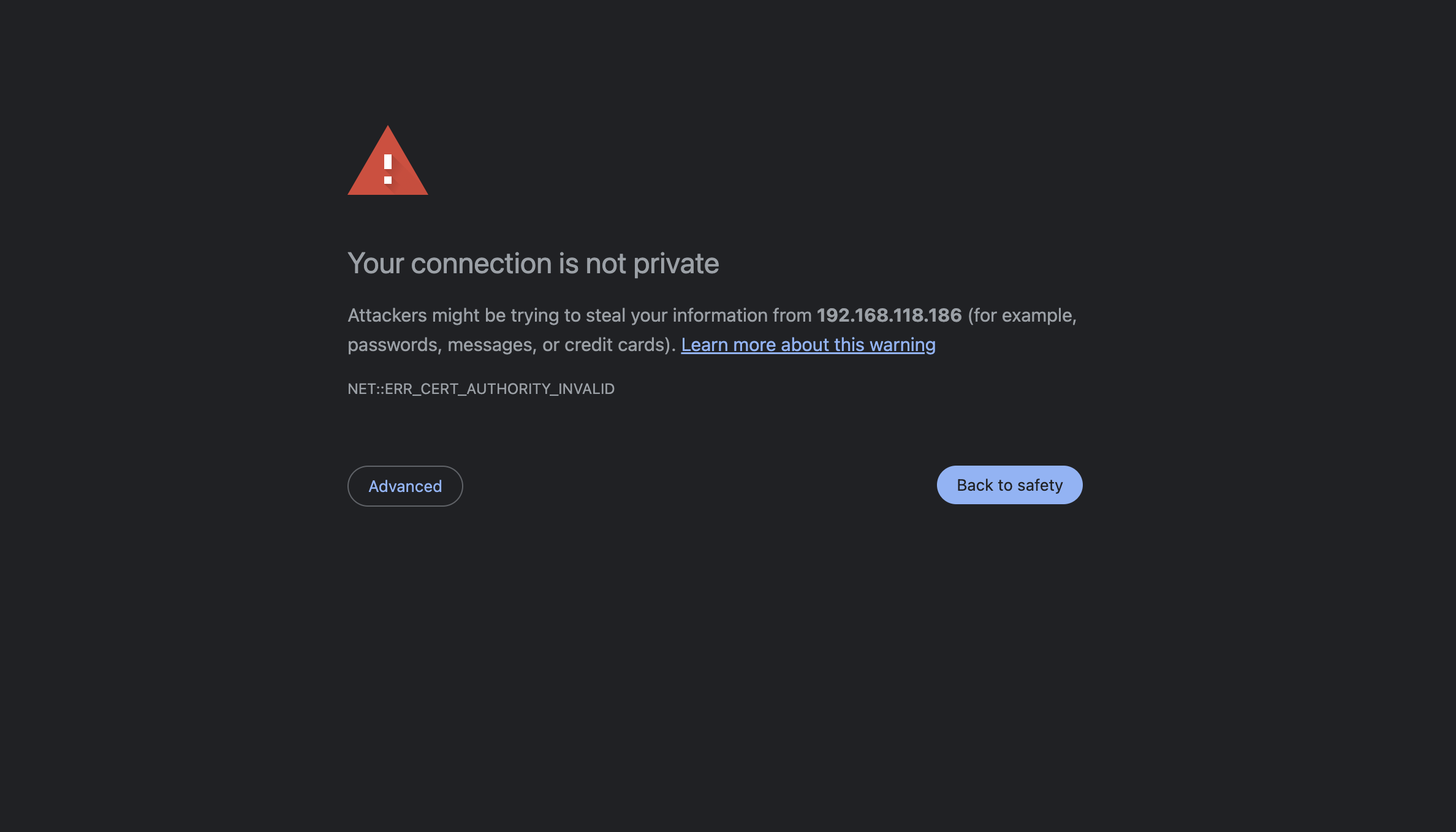
Please click the "Advanced" button to continue,
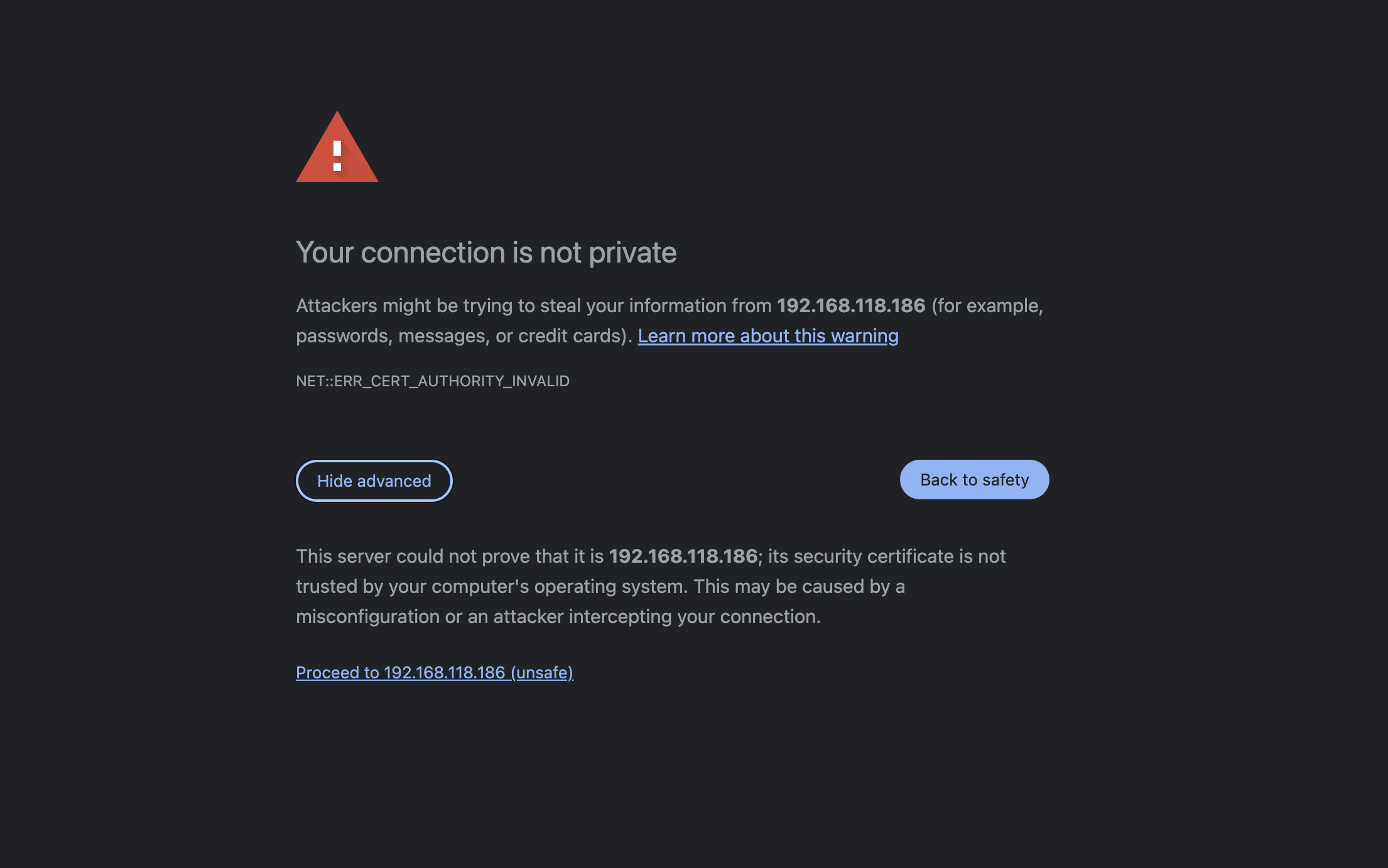
And then, click the "Proceed to <YOUR_HOST_NAME>" button to continue.
You can see the "start" button on the web page. Please click it to start the WebXR teleoperation.
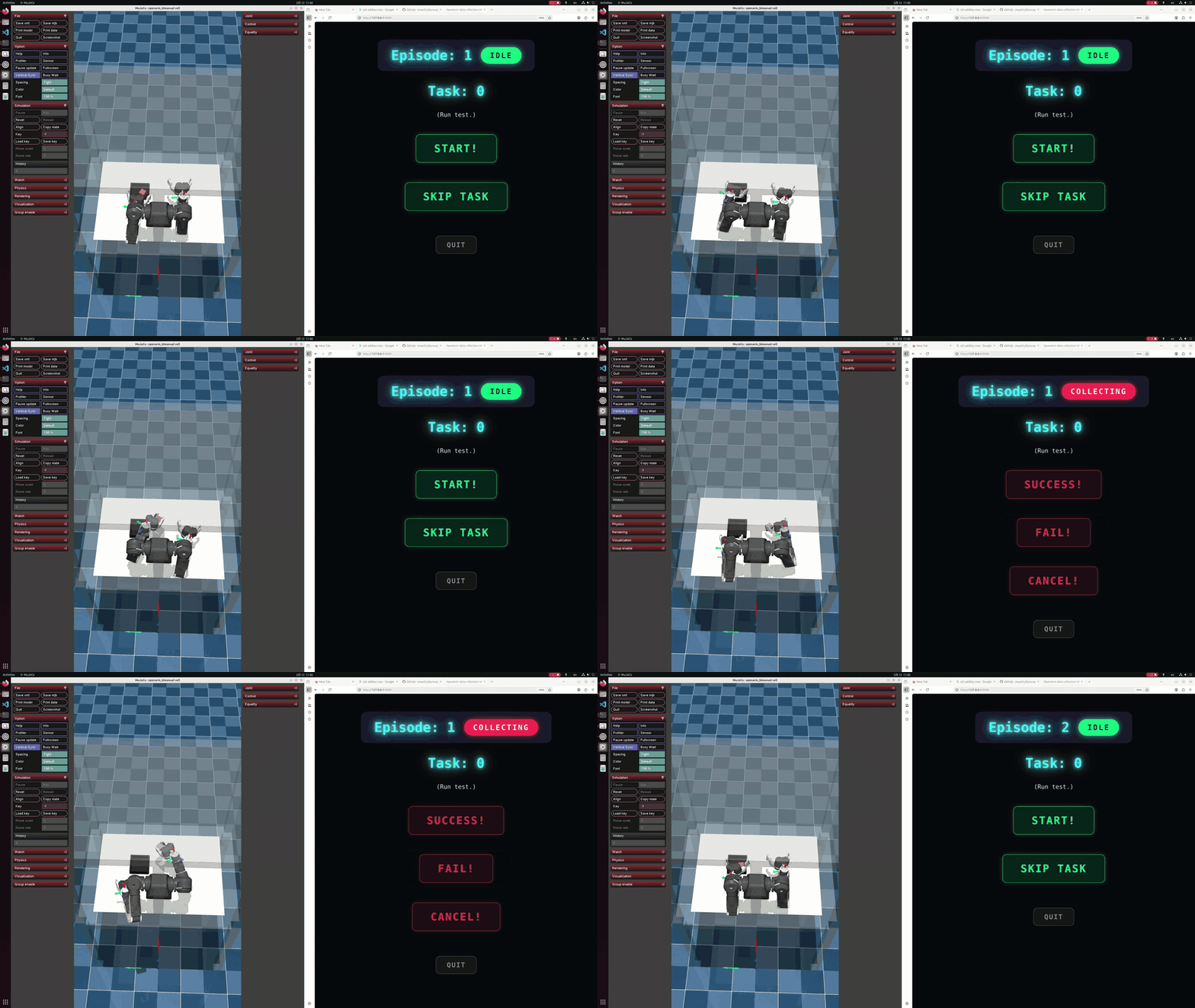
left: MuJoCo environment, right: data collection web UI
How to control data collection with VR controllers
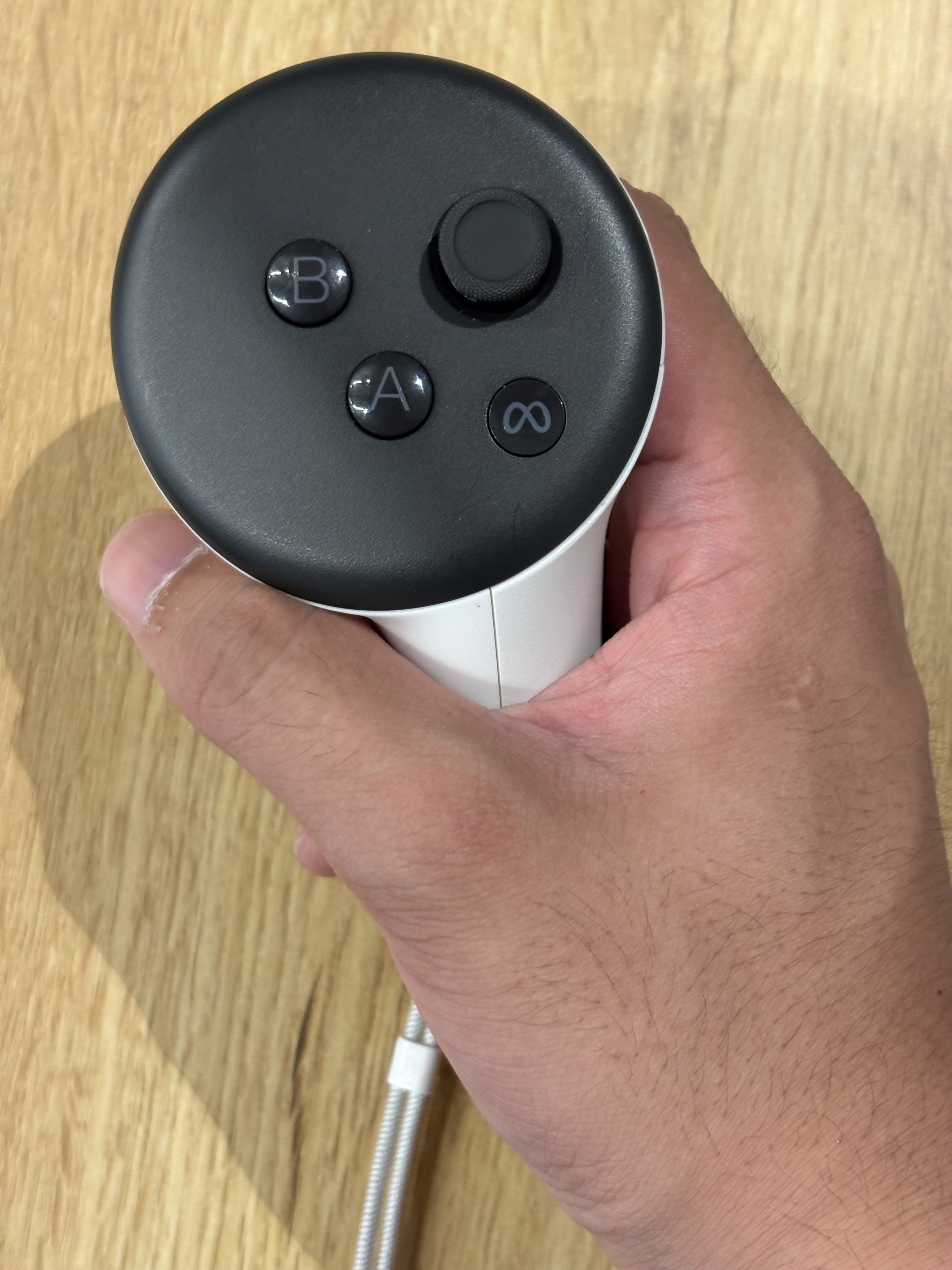
You can use button A and B on the right VR controller to control the data collection.
After the program starts, open http://localhost:8000 to check the data collection status and control the data collection.
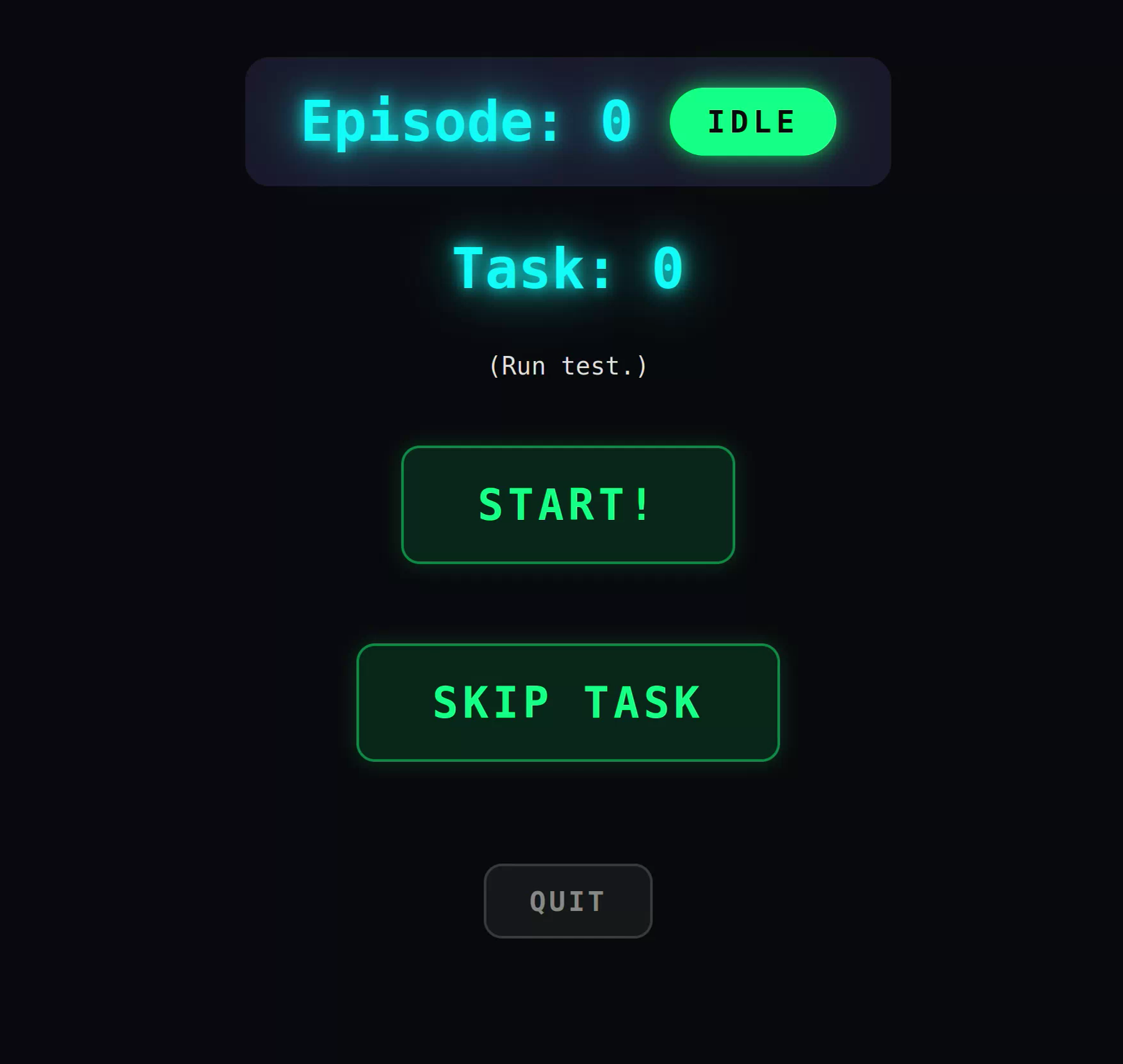
When the web UI looks like the image above, you can start the data collection by pressing the A button on the right VR controller. This will start recording the data.
- A : start recording
- B : quit the program
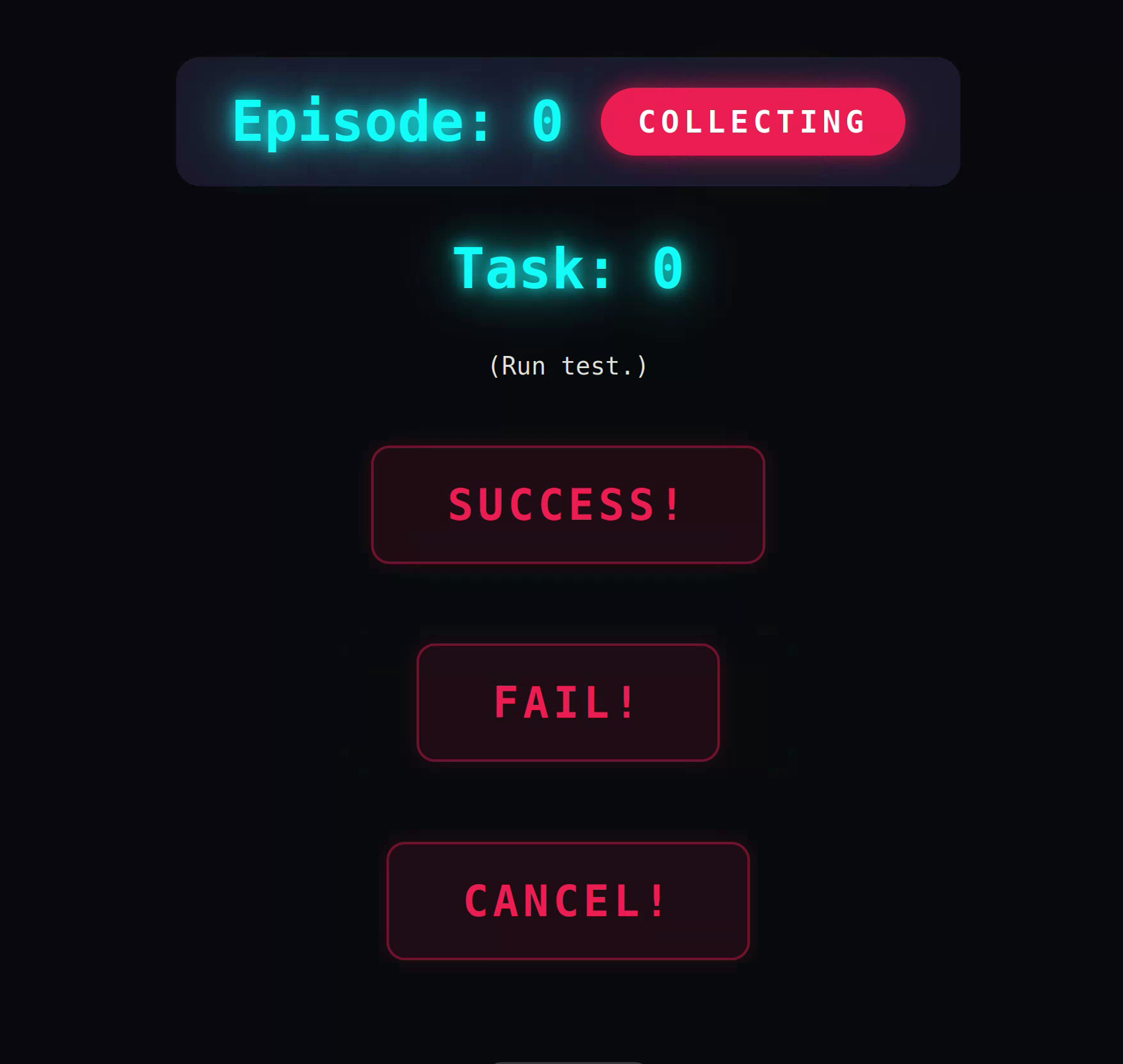
when you start recording, the data collection will start. If you successfully complete the task, press the A button again to stop recording and mark the episode as success. If you fail the task, press the B button to stop recording and mark the episode as failure.
- A : mark as success
- B : mark as failure
Check the collected data
The collected data is stored in data/webxr-mujoco by default.
If you want to change the data path, change the value of DIRECTORY of the recorder node in dataflow.yaml.
- id: recorder
  path: dora-openarm-dataset-recorder
  env:
    METADATA_FILE: "metadata_${ROBOT:-dummy}.yaml"
    # Output directory for recorded datasets, e.g. data/webxr-mujoco.
    DIRECTORY: "data/${LEADER:-dummy}-${ROBOT:-dummy}"
After finishing the data collection, you can check the collected data in the specified directory. The data will be stored in the OpenArmDataset format.
If you don't have the real robot, skip the next two sections and move to the dataset format conversion section to convert the collected data to the LeRobot dataset format for training the policy.
Data collection on the real robot (pedestal)
If you have the OpenArm 2.0 alone without the cell, you can collect data with WebXR teleoperation.
Start data collection
LEADER=webxr ROBOT=pedestal scripts/dora-envsubst run dataflow.yaml --uv
The TLS certificate generated in preparation for WebXR teleoperation is required here too.
Open http://localhost:8000/ on the local machine for the data collection UI, and open https://<YOUR_HOST_NAME>:8443/ in the Web browser on your VR device, then press the "start" button to start teleoperation.
If the command runs successfully, the arms will start. You need to align your VR controllers to the arm first by holding the trigger button.
Once the alignment completes, you can fully control the arm with the VR controllers. If you want to stop the arms temporarily, press the Pause Arm button on the data collection web UI, and press the Start Arm button to start them again.
The collected data is stored in data/webxr-pedestal by default.
ROBOT=pedestal only collects action and state data, and does not collect camera images. If you want to collect camera images, use ROBOT=cell with the OpenArm 2.0 with the cell.
Data collection on the real robot (Cell)
For the OpenArm 2.0 with the cell, use ROBOT=cell.
First, make sure that the CAN interfaces are up and running and the cameras are set up properly as described in Setup.
Start data collection
LEADER=webxr ROBOT=cell scripts/dora-envsubst run dataflow.yaml --uv
ROBOT=cell requires the lifter connected to can2, and the lifter moves for calibration right after the dataflow starts. Make sure nothing is in the way of the lifter before you run the command. See CAN setup.
This also requires the TLS certificate generated in preparation for WebXR teleoperation.
Open http://localhost:8000/ on the local machine for the data collection UI, and open https://<YOUR_HOST_NAME>:8443/ in the Web browser on your VR device, then press the "start" button to start teleoperation.
The image from the head camera is shown in the VR device. You can change the view settings in view-webxr.yaml.
If the command runs successfully, the arms will start. Align your VR controllers to the arm by holding the trigger button. You can move the lifter of the Cell up and down with the joystick on the left VR controller.
The collected data is stored in data/webxr-cell by default.