Data collection with KER
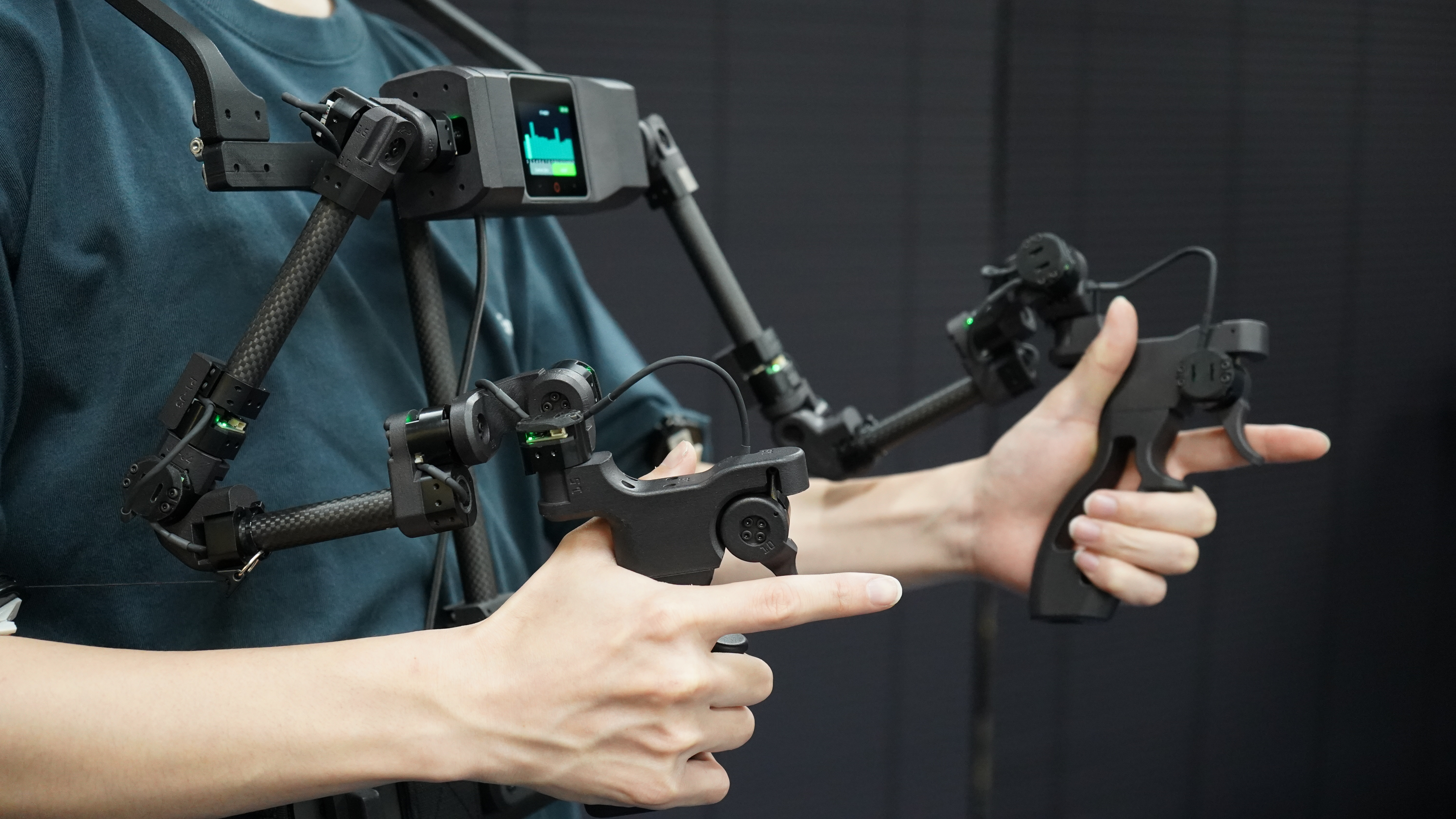
OpenArm KER is a motorless leader arm that enables intuitive operation of OpenArm 2.0.
Prerequisites
- Foot pedal (required for data collection)
- OpenArm KER
The Foot pedal is used to control the data collection. OpenArm KER is used to control the robot arms.
Core Repositories
- openarm_ker: PC-side data reception library.
- dora-openarm-ker: dora-rs node implementation for the OpenArm KER.
Setup
Software setup
1. Install system dependencies
sudo apt install libusb-1.0-0-dev
2. Set up udev rules
echo 'SUBSYSTEM=="usb", ATTRS{idVendor}=="303a", MODE="0666"' | sudo tee /etc/udev/rules.d/99-m5stack.rules
sudo udevadm control --reload-rules && sudo udevadm trigger
If the KER is connected, you can check the connection with the following command.
lsusb | grep 303a
303a:4002 should appear in the output.
3. Ping KER with the CLI
openarm-ker-cli is installed with the data collection software (see Installing the data collection software).
Run the following command with the virtual environment of dora-openarm-data-collection activated.
openarm-ker-cli ping
If you get a response like below, the connection is successful.
OpenArm KER   USB 303a:4002

  Firmware   v1.0.0
  Hardware   KER-v1.0.0
  Updated    2026-05-25
Also, you can check the data from the encoder with the following command.
openarm-ker-cli stream
Please push the green button on the KER display to start streaming the data. The encoder angles and the stream rate are shown in the terminal. Press Ctrl+C to stop.
Teleoperation and Data Collection
After the setup, you can run the dataflow and start teleoperation / data collection with KER.
Install the data collection software
Install the data collection software as described in Installing the data collection software.
If you have already cloned dora-openarm-data-collection without --recurse-submodules, run git submodule update --init --recursive in the repository to fetch the nodes.
How to wear KER
-
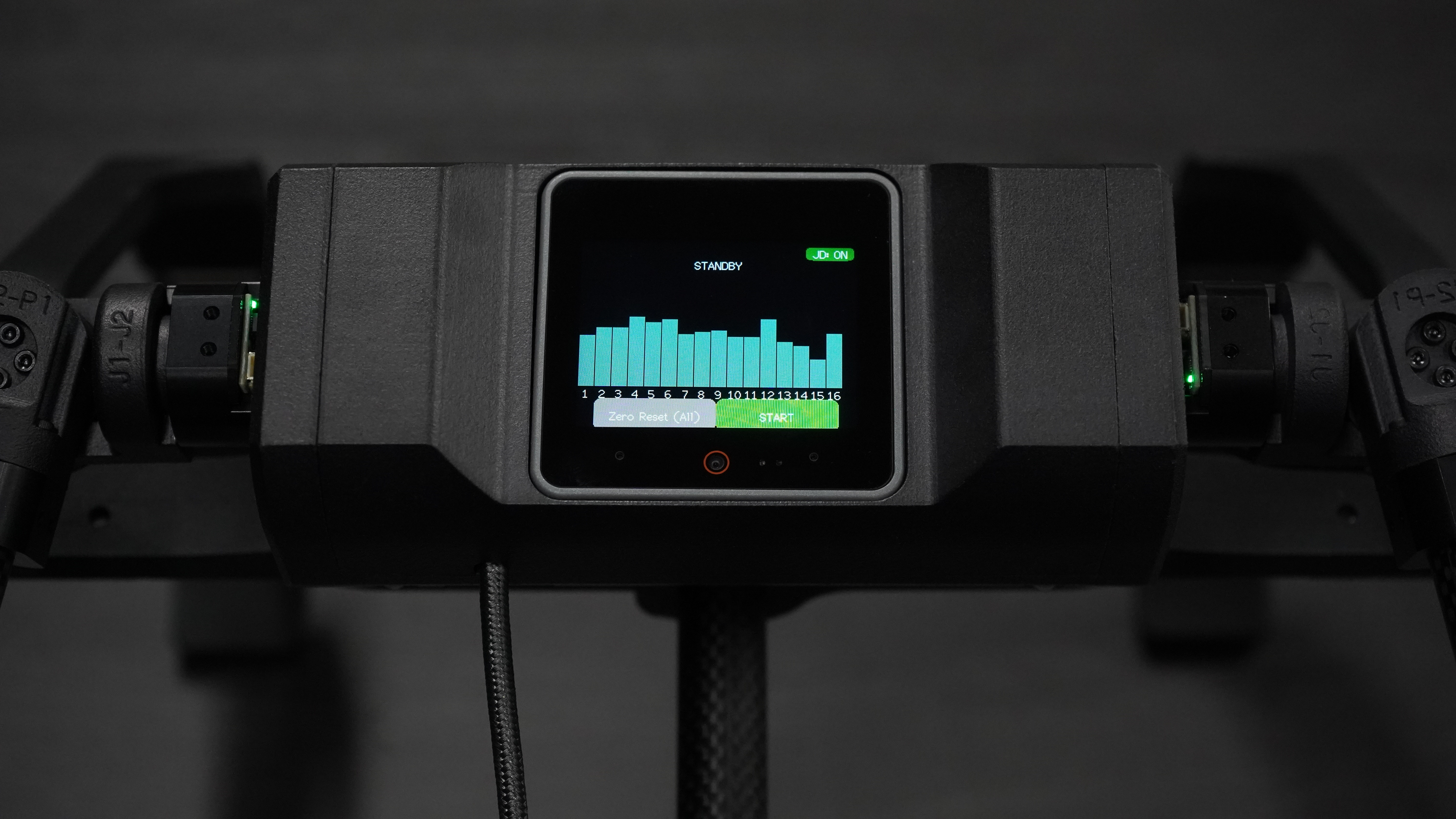
Connect the device to your PC using a USB Type-C cable.
-
The KER M5Stack display should turn on.
-
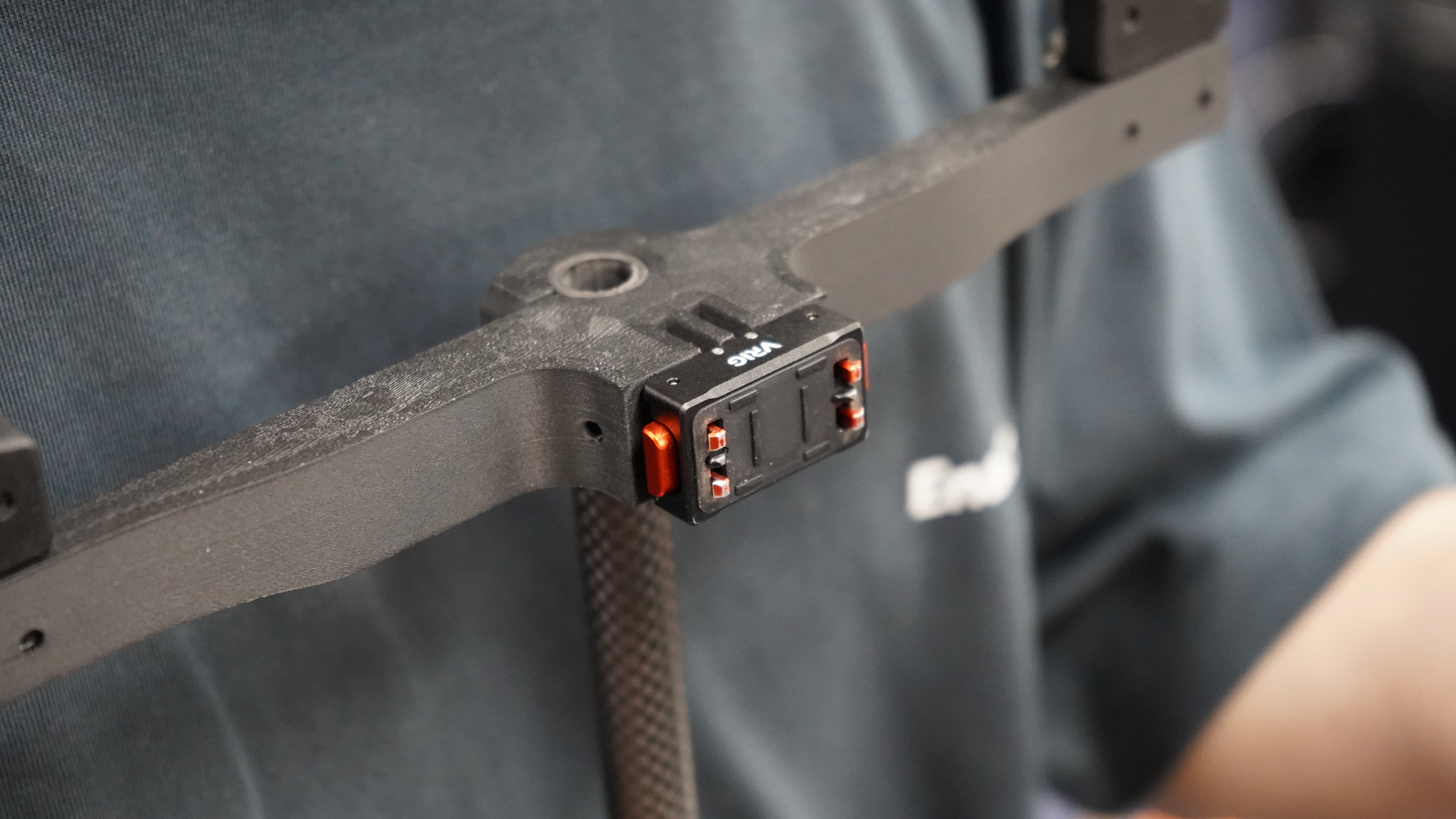
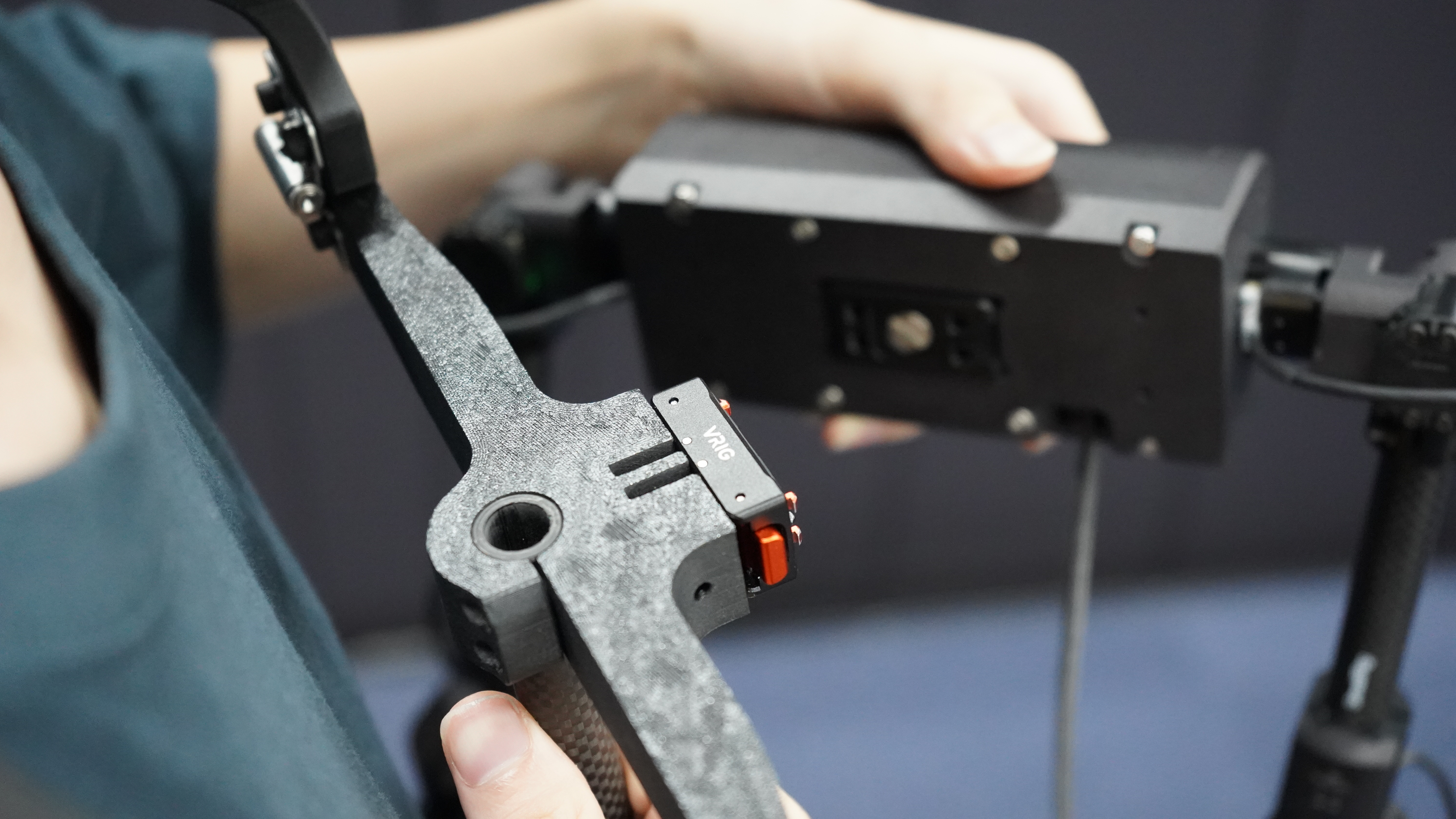
Attach the holderto the mounting plate. Make sure the holder is securely attached.
Run the dataflow
Run the following command in the dora-openarm-data-collection directory with the virtual environment activated.
LEADER=ker ROBOT=cell scripts/dora-envsubst run dataflow.yaml --uv
ROBOT=cell requires the lifter connected to can2, and the lifter moves for calibration right after the dataflow starts. Make sure nothing is in the way of the lifter before you run the command. See CAN setup.
Use ROBOT=pedestal instead if you have the OpenArm 2.0 alone without the cell. See Running the data collection dataflow for details.
Open the web UI at http://localhost:8000 same as VR teleoperation. The foot pedal works as a keyboard, so keep the web UI tab focused while you use the pedal.
The collected data is stored in data/ker-cell by default.
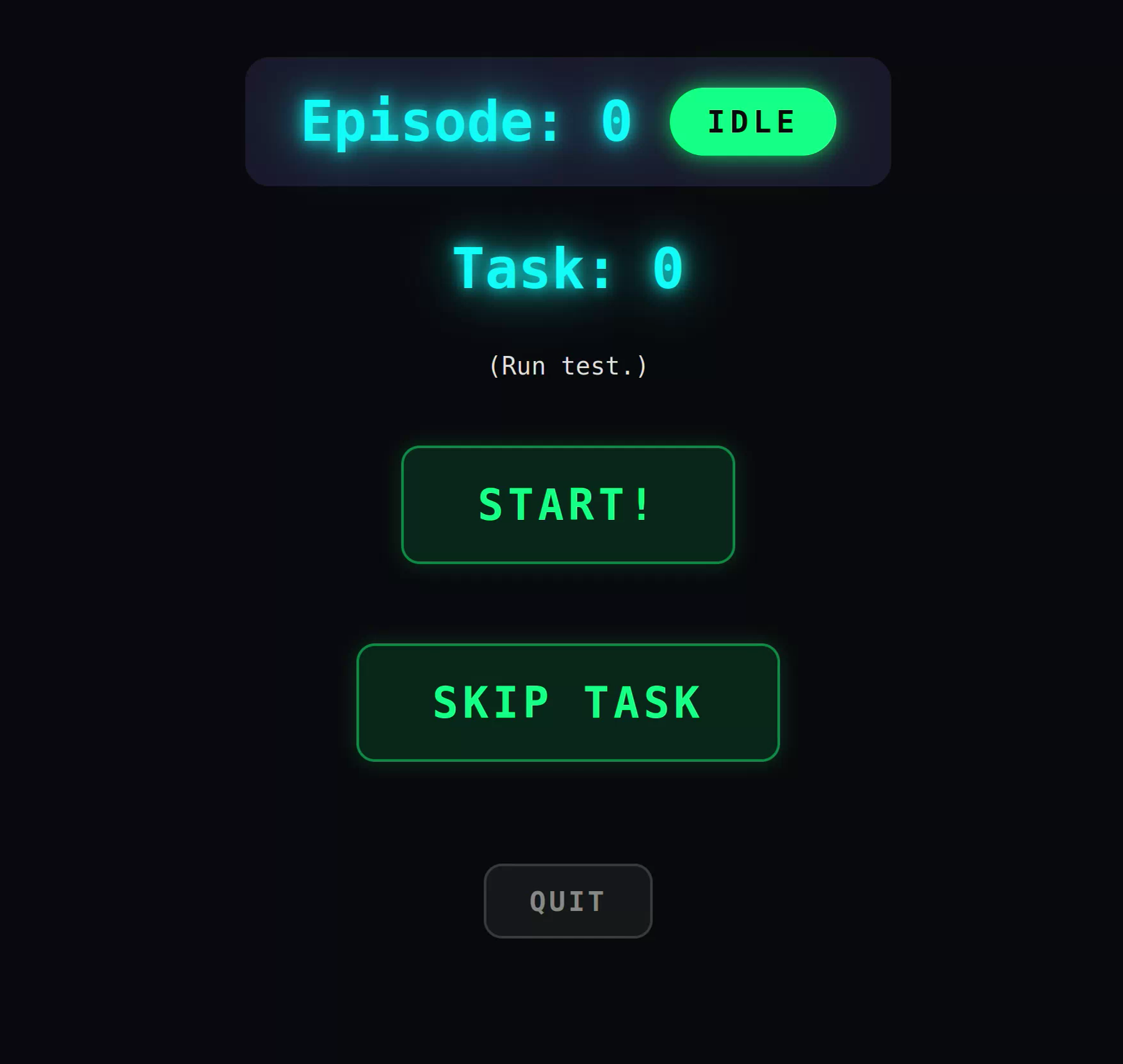
After you start the dataflow, you can align the KER with the OpenArm by pulling the KER trigger. After the alignment, OpenArm will follow the movement of KER, and you can do teleoperation smoothly with KER.
During the data collection, you can use the foot pedal to control the start / stop / reset or success / failure of the data collection.
We recommend using a 3-button foot pedal from SANWA Supply.
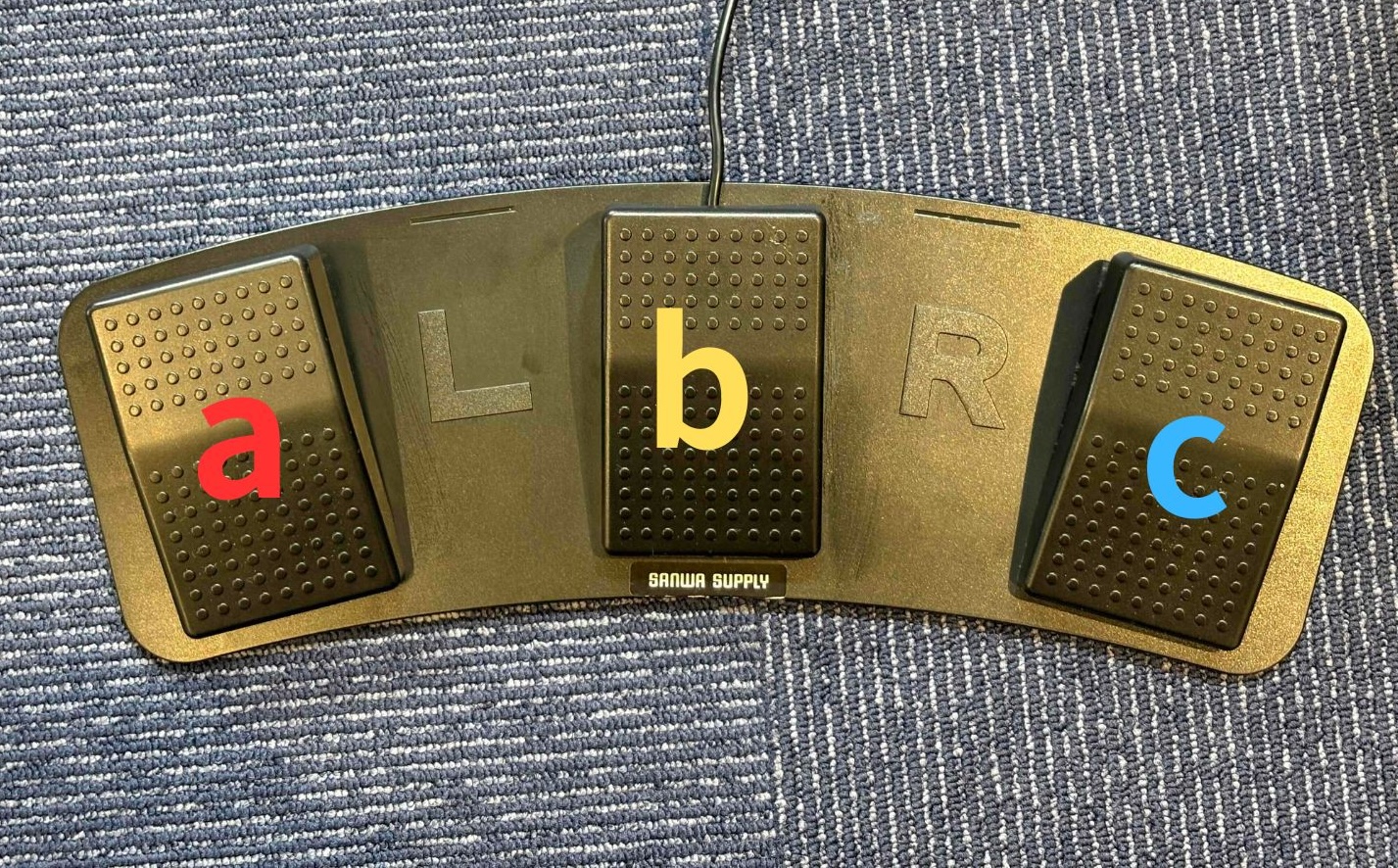
Button mapping:
| Button | Start panel | Recording panel |
|---|---|---|
| left (a) | - | fail (long press: cancel) |
| middle (b) | quit (long press: start / pause arms) | quit (long press: start / pause arms) |
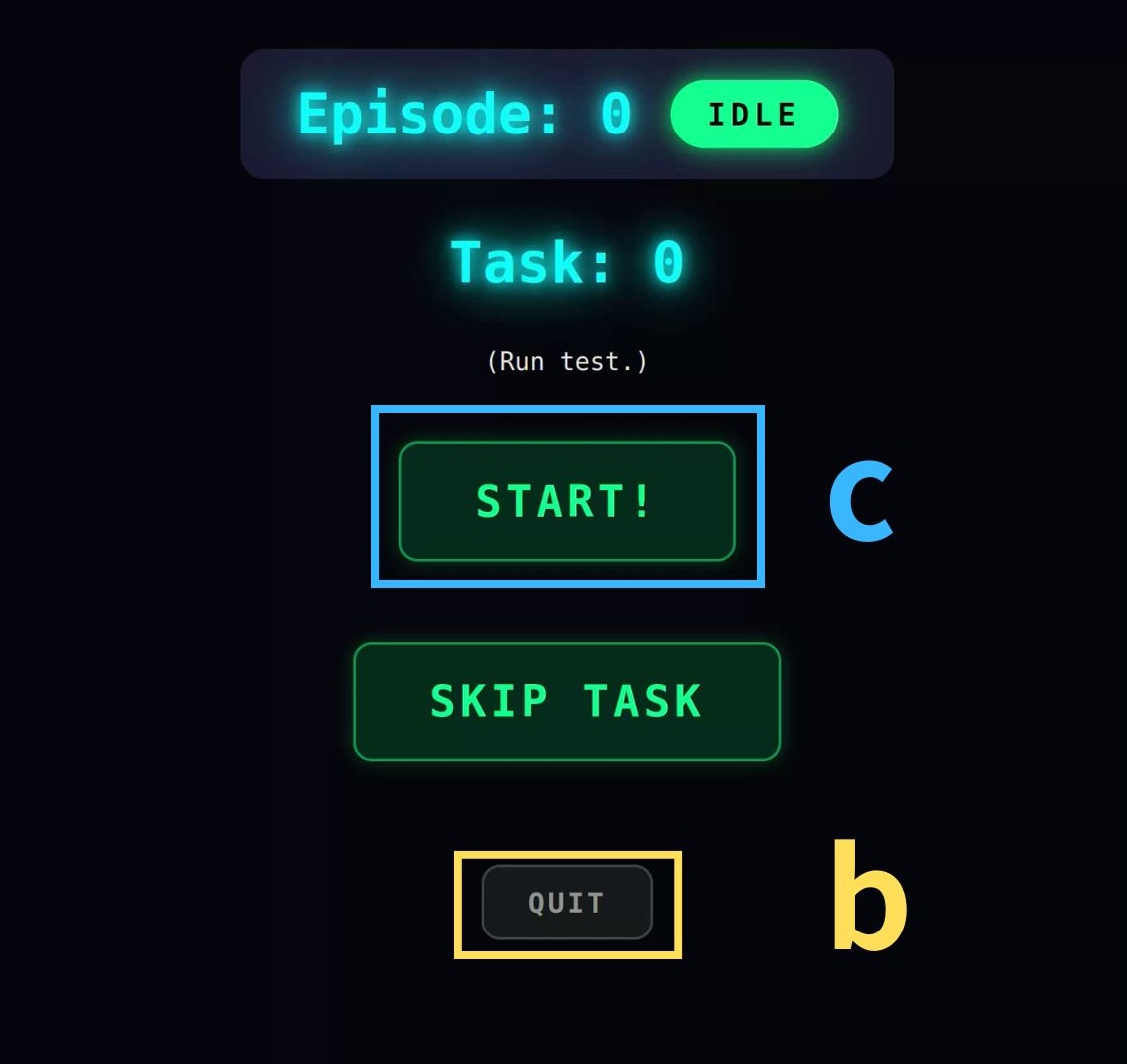
| right (c) | start (long press: skip task) | success |
A long press means holding the button for 1 second or longer. You can stop the arms temporarily and start them again by long-pressing the middle(b) button or by pressing the Pause Arm / Start Arm button on the web UI. If you use a different foot pedal, please check the button mapping and map the buttons to a,b,c accordingly.
After you start the data collection, you can see the start or skip panel on the web UI. You can start the data collection by pressing the right(c) button.
After the data collection is started, you can see the success or fail panel on the web UI.
Press the left(a) button to mark the data collection as fail, or press the right(c) button to mark it as success. To discard the current episode without saving it, long-press the left(a) button. If you press success or fail within 1 second after starting with the pedal, it is ignored to prevent accidental double presses.
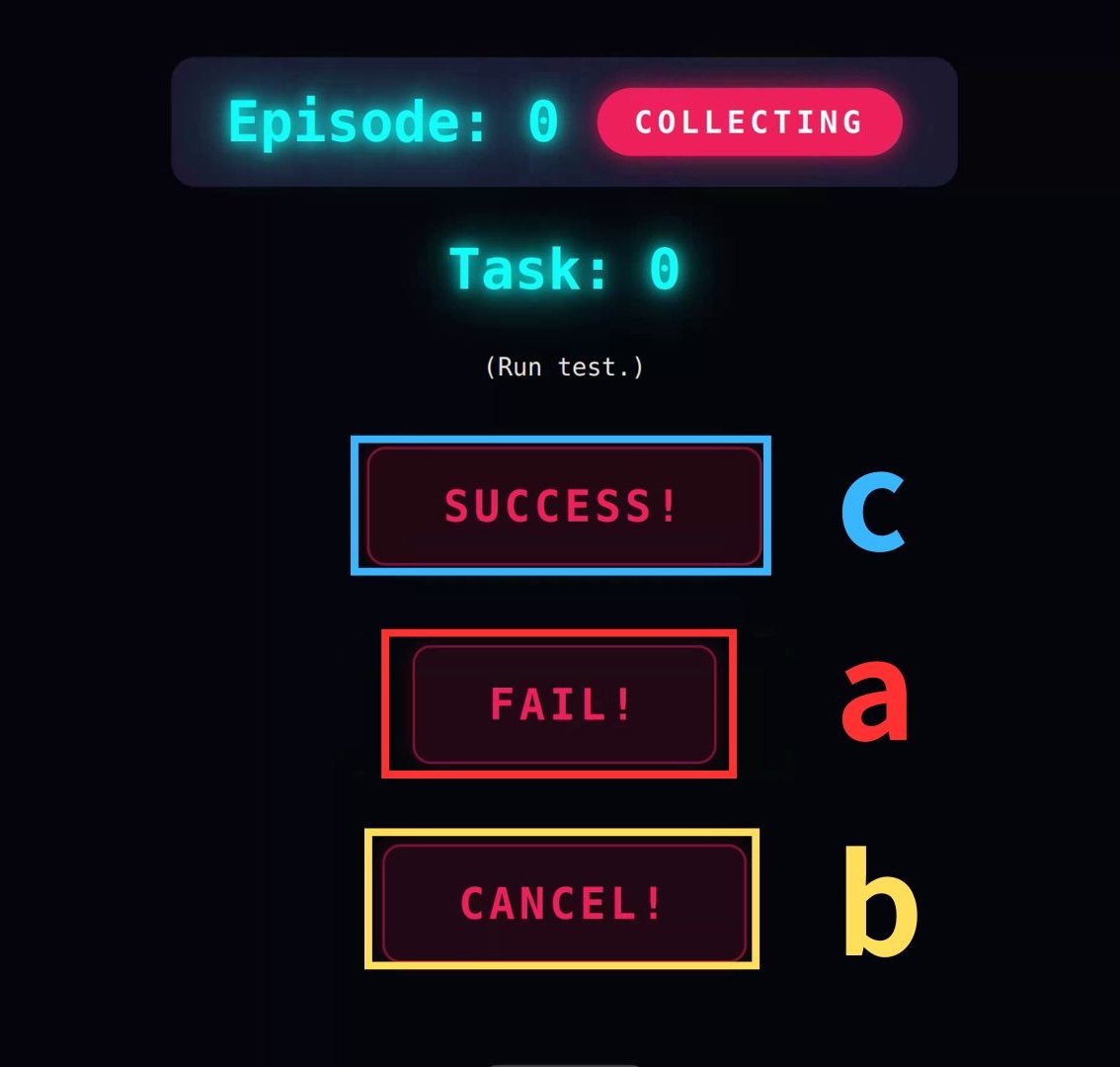
Also, you can press the middle(b) button to quit the data collection at any time. The episode being recorded is saved as a failure.
Troubleshooting
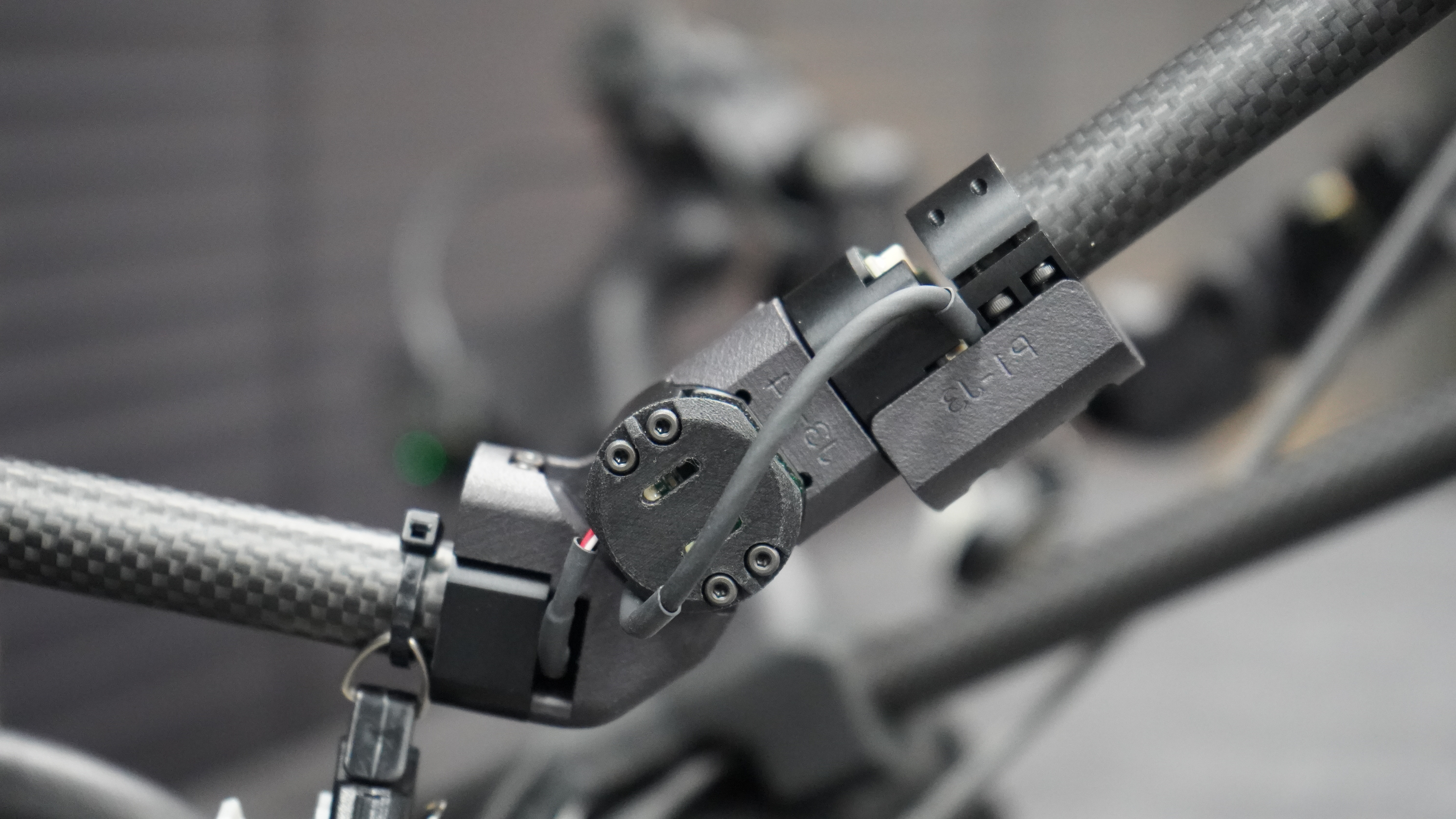
If you see the following screen, check the possible causes below.
1. If the ERR bar is displayed
Possible causes:
- Check that all cables are connected securely.
- Make sure the IC is properly seated and not loose.
- Inspect the connectors and PCB for poor contact or damaged pins.
2. If Jump Detect is displayed
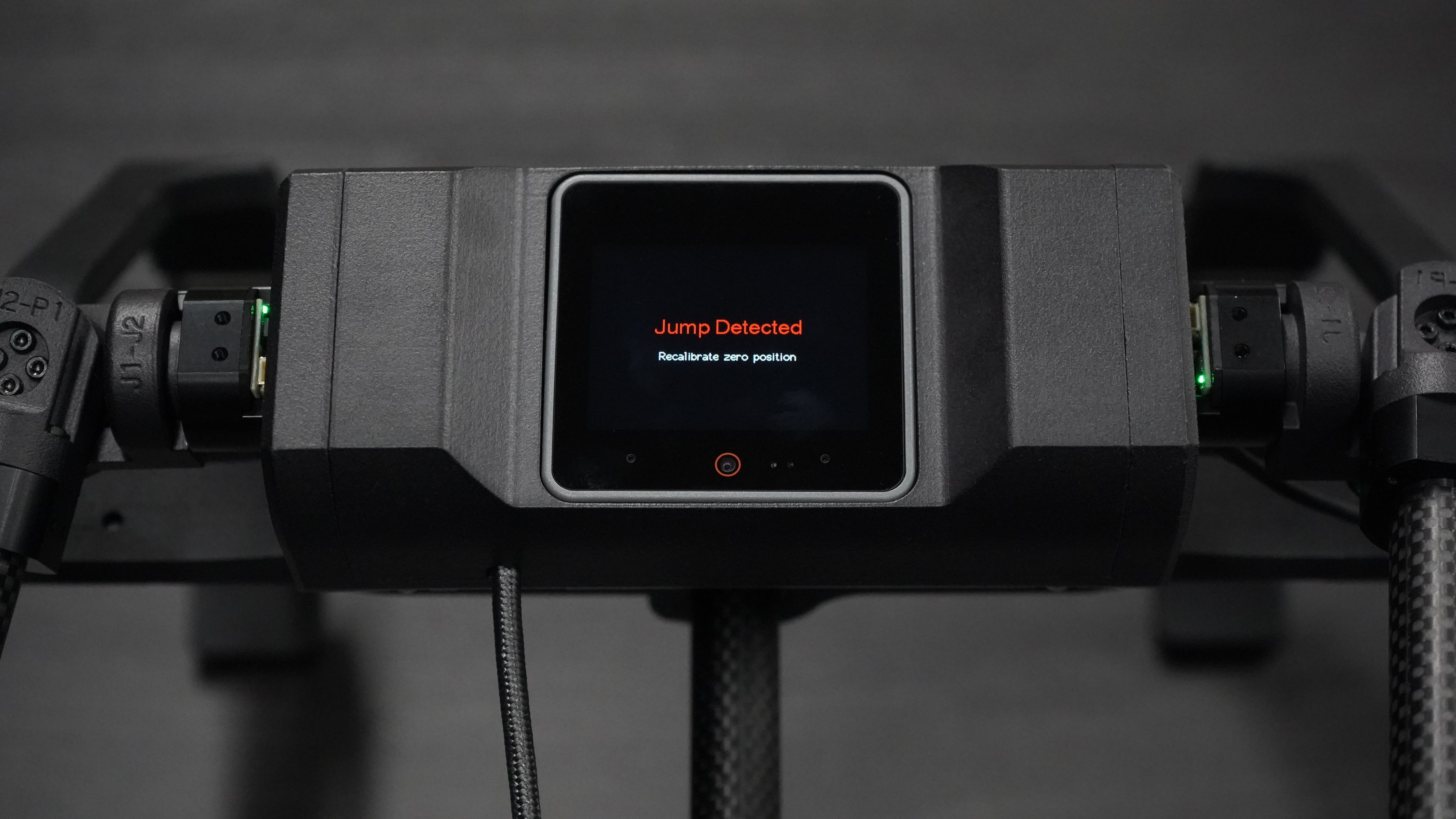
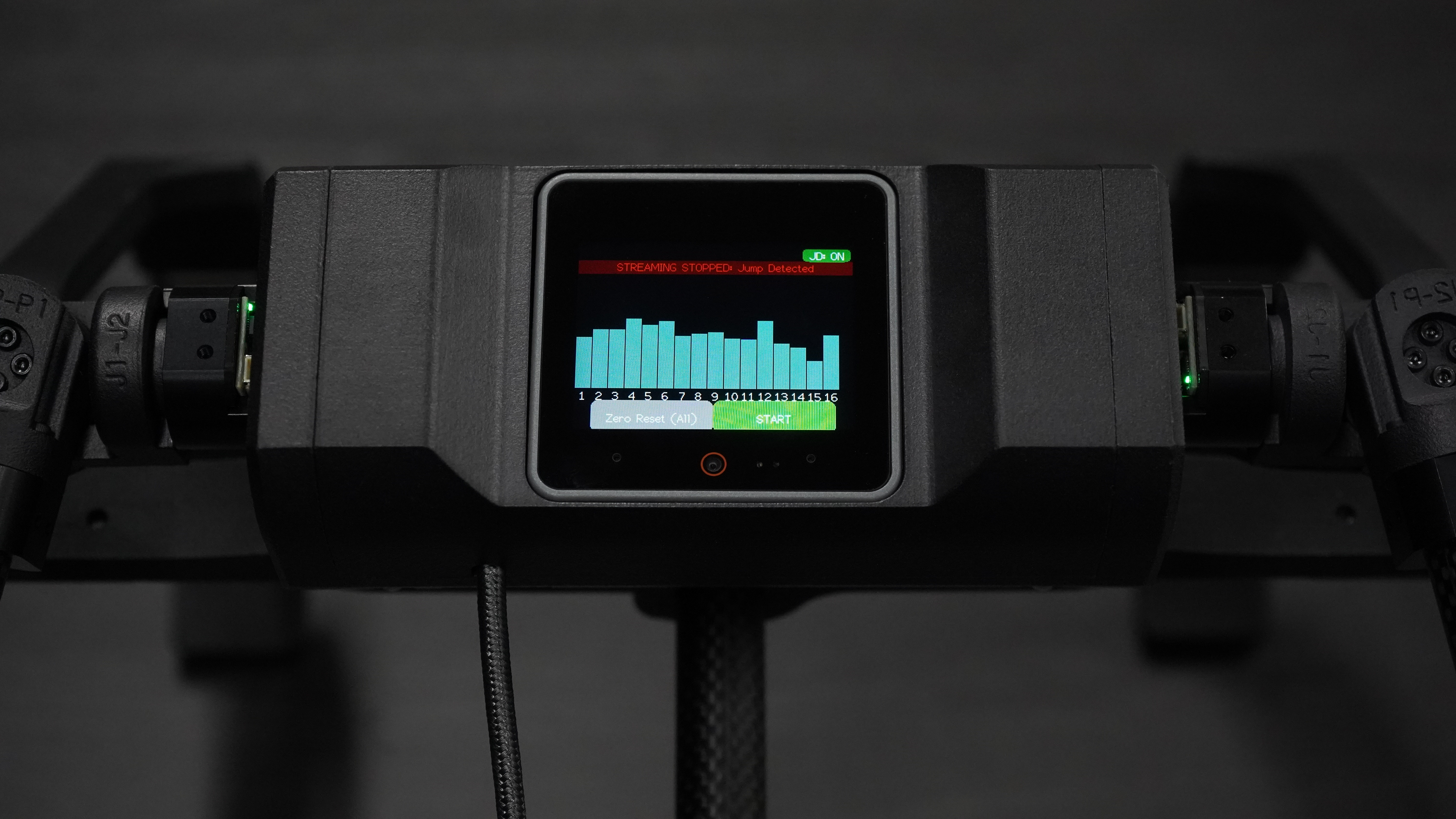
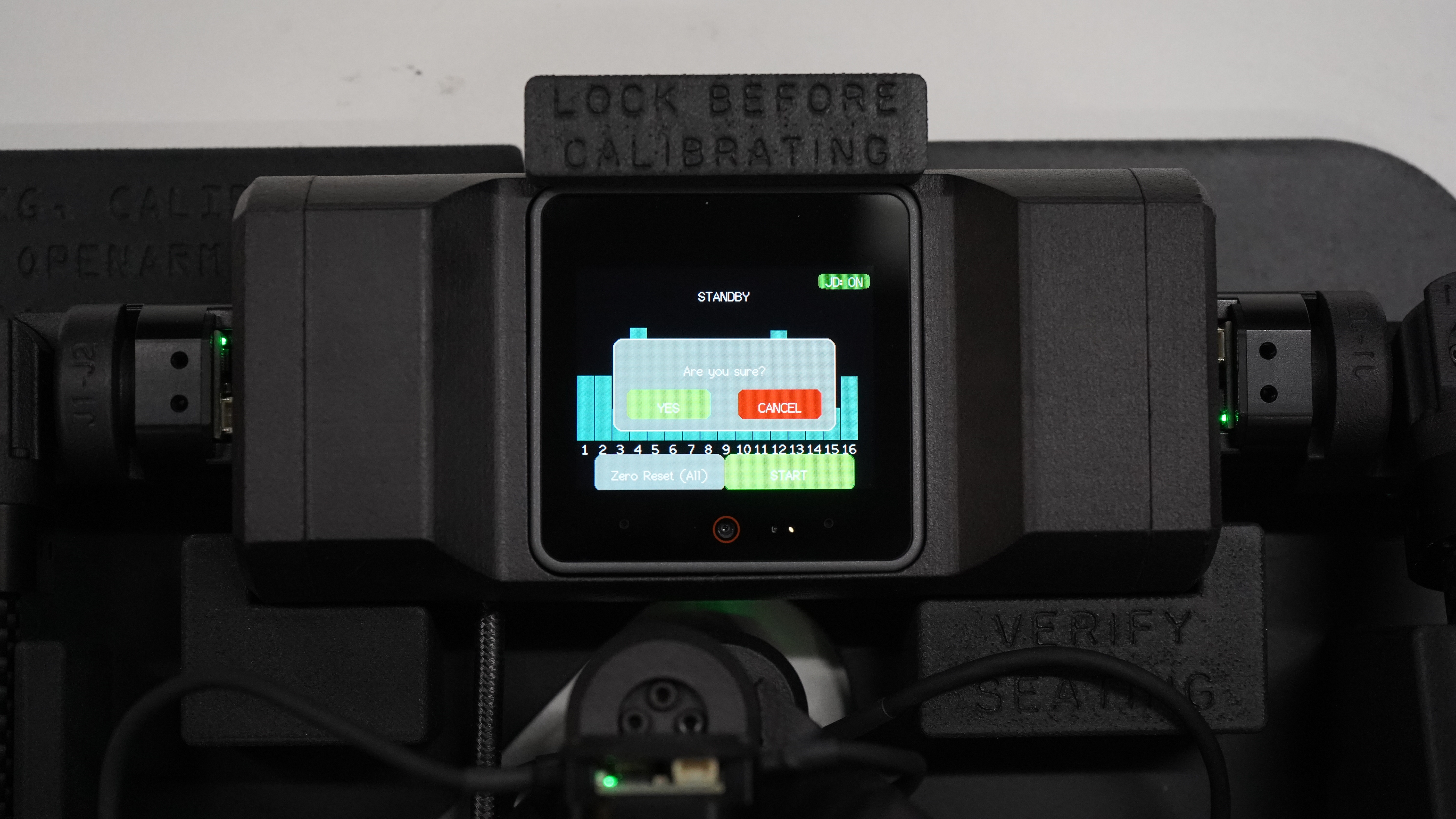
Please write the zero position again. See the Calibration workflow for details.
First, put the KER in the Box and fix the position of the KER with screws.
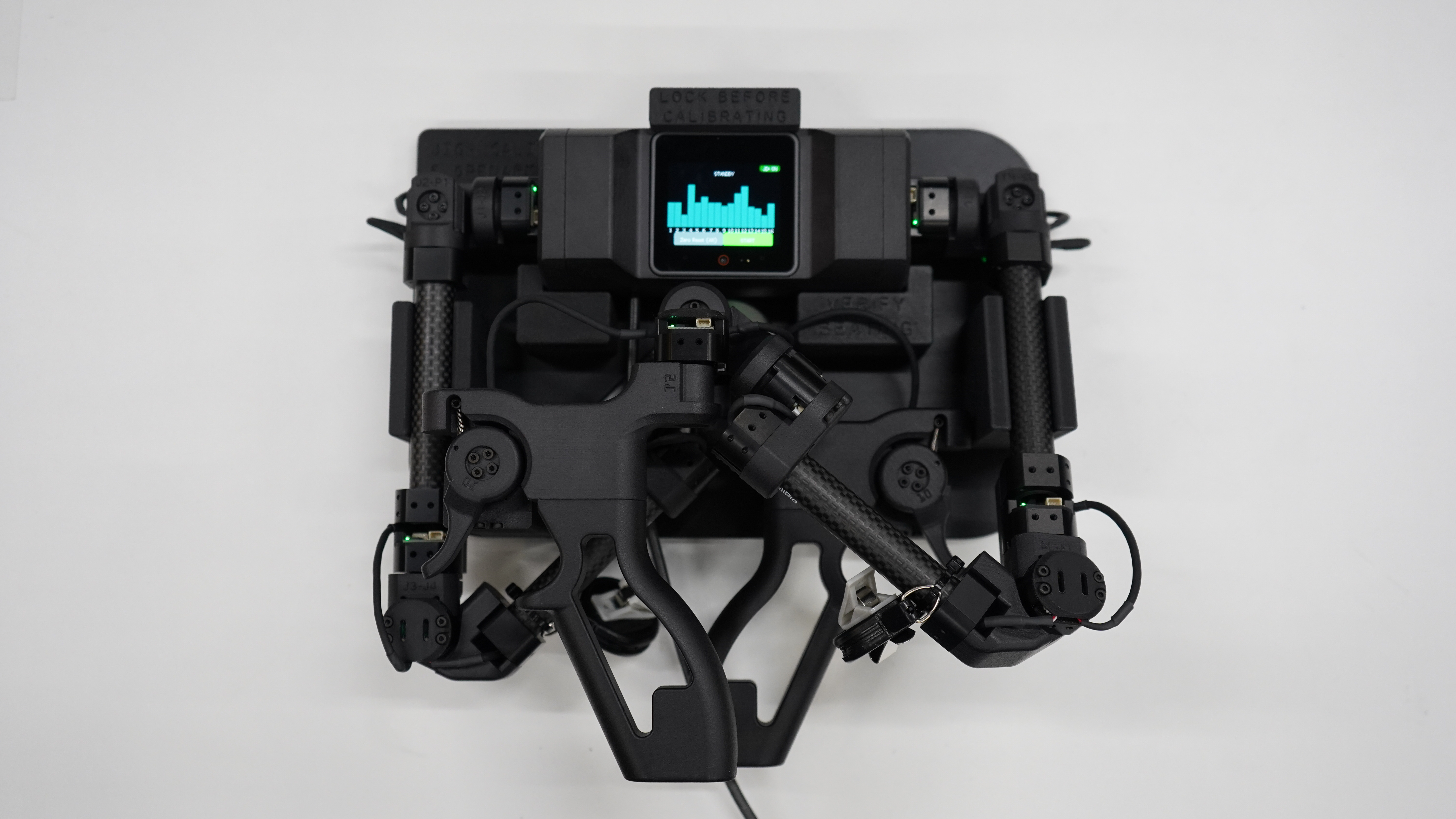
Then, turn on the KER by connecting the USB cable, and press the gray button(Zero Reset All) on the KER display.
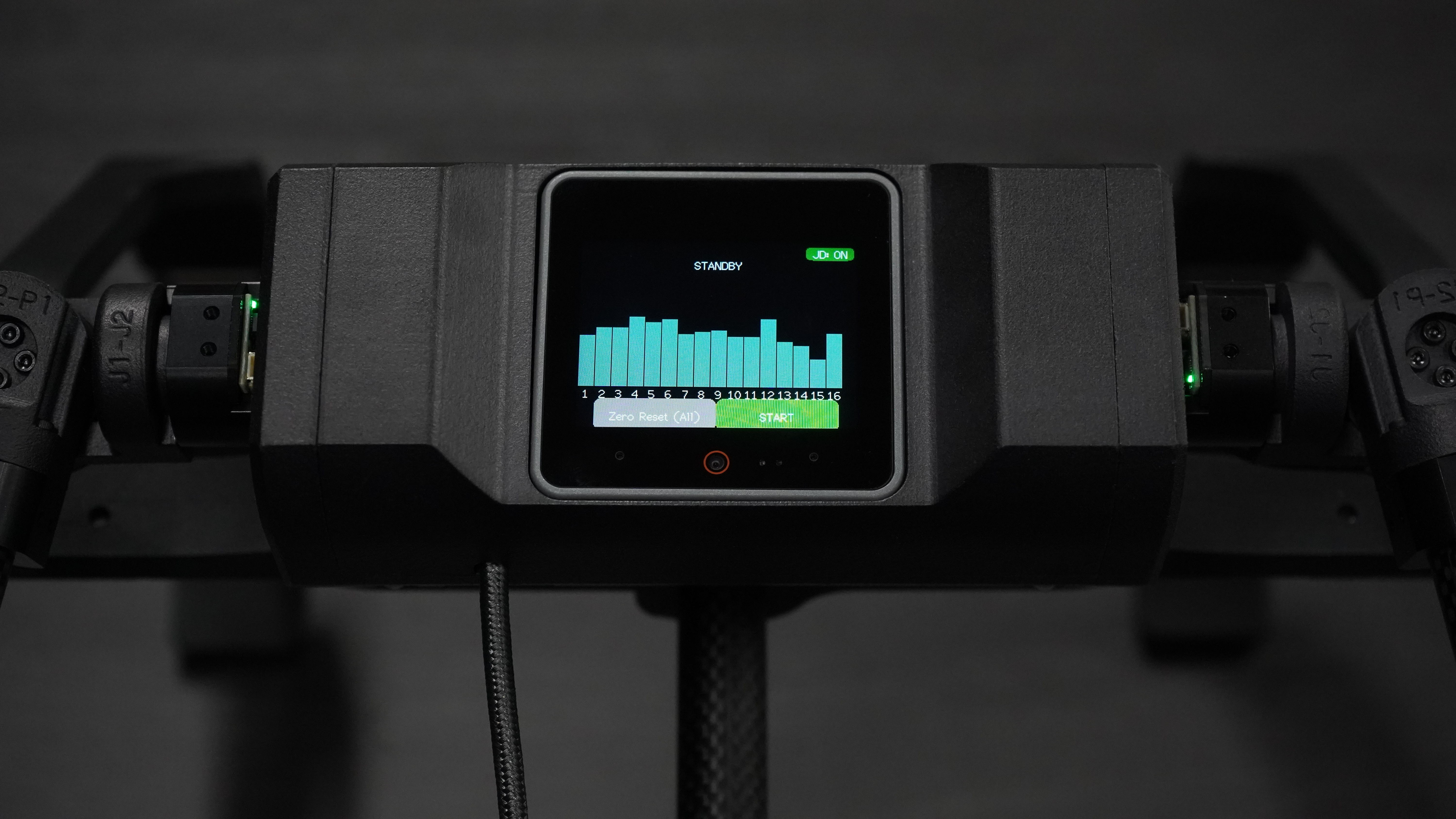
Pop up window will appear on the display. Please select Yes and press the button to write the zero position.